
If you’ve spent any time in the Microsoft Defender portal or the Intune admin center, you’ve probably come across Attack Surface Reduction rules, commonly called ASR rules. In this post we’re going to break down what ASR rules actually are, why admins are hesitant to enable them, and the right way to roll them out without generating a flood of helpdesk tickets.
What Are ASR Rules?
Attack Surface Reduction rules are a feature of Microsoft Defender for Endpoint that work by blocking specific behaviors at the OS level before a threat even has a chance to reach your antivirus or EDR solution. Think of them as guardrails that prevent common attack paths from being exploited in the first place.
The goal is to reduce the number of entries points a threat actor has into your environment. ASR rules are particularly effective at stopping malware and ransomware delivery techniques dead in their tracks before your other security layers ever need to get involved. That said, ASR rules are one layer of a defense-in-depth strategy, not a replacement for everything else in your stack.
Why Are They Scary to Enable?
Here’s the honest answer: because if you do it wrong, you will cause interruptions for your users.
Every admin has to constantly balance security with keeping the operation functioning. In an ideal world you’d lock everything down as tight as possible and make it nearly impossible for a threat actor to move through your environment. In reality, your job as an admin is to be an operational multiplier, putting in security controls and processes that protect the organization while keeping people able to do their jobs efficiently. Locking down too hard without planning gets you a secure environment that nobody can work in, and that’s its own kind of failure.
ASR rules are a prime example of this tension as several of them will break legitimate business applications if you enable them in block mode without testing first. Enable all rules in block mode on day one and you’ll find out very quickly what your users can’t live without.
Requirements
Before you can use ASR rules, make sure your environment meets the following requirements:
- Windows 10 version 1709 or later, Windows Server 1803 (Semi-Annual Channel or later), or Windows Server 2019
- Windows 10 Pro, Enterprise, or Education edition
- Microsoft Defender Antivirus must be the active antivirus solution — it cannot be in passive mode
- Some rules require cloud-delivered protection to be enabled
It’s also worth noting that while ASR rules do not require a Microsoft 365 E5 license, having E5 gives you significantly better reporting, optics, and data insights through the Defender portal. If you’re on E3 you can still use ASR rules, but your visibility into what the rules are catching will be more limited.
The Three Modes: Audit, Warn, and Block
Before we get into deployment methodology, you need to understand the three modes ASR rules operate in because this is what makes safe rollout possible.
Audit Mode: The rule is active but does nothing to stop the behavior. It only logs what would have been blocked. This is your starting point for every rule in every environment, no exceptions. You need to know what you’re dealing with before you block anything.
Warn Mode: The rule triggers and shows the user a warning that the action was blocked but gives them the option to bypass it. This is useful for rules where you want user awareness without hard enforcement, or as a middle step between Audit and Block.
Block Mode: The rule is fully enforced. The behavior is stopped and the event is logged. This is where you want to end up, but only after you’ve done your homework in Audit mode first.
The Right Way to Roll Out ASR Rules
This is the part most blog posts skip over, and it’s the most important section of this entire post. Do not just enable rules across your entire organization. Here is the workflow that is shown by Microsoft.
Step 1: Plan
Start by identifying your business units and understanding what each group of users actually does day to day. From there you want to find your ASR champions, these are individuals across the organization who have above-average technical knowledge and can act as your first line of feedback if something breaks. You also want to build a line-item inventory of approved business applications before you touch anything, because you can’t secure applications if you don’t know you use them. Finally, define your deployment rings, typically Ring 1 is IT and technical staff, Ring 2 is a broader pilot group, and Ring 3 is the rest of the organization.
Step 2: Start in Audit Mode
Enable the ASR rules you want to apply to Ring 1 in Audit mode. Let it run for at least 30 days. During this time the rules are logging everything they would have blocked without actually blocking anything. Pull the reports from the Defender portal and review what’s being flagged. Anything that corresponds to legitimate business activity needs to go on your exclusion list before you move to the next step.
Step 3: Move to Block or Warn
After your audit period and exclusion tuning, you can move Ring 1 to Block or Warn mode. Watch your helpdesk queue and your Defender reporting closely. Assess any issues that come in and adjust your exclusions accordingly.
Step 4: Repeat Per Ring
Once Ring 1 is stable, repeat the process for Ring 2, then Ring 3. During this time, you will continue to adjust your exclusion list where it is needed to ensure this is not interrupting organizational workflow.
How to Configure ASR Rules in Intune
There are several ways to configure ASR rules including Group Policy, PowerShell, MDM, and Microsoft Endpoint Configuration Manager. We will go over how to configure an ASR inside of Intune.
- In the Intune admin center, navigate to Endpoint Security > Attack Surface Reduction
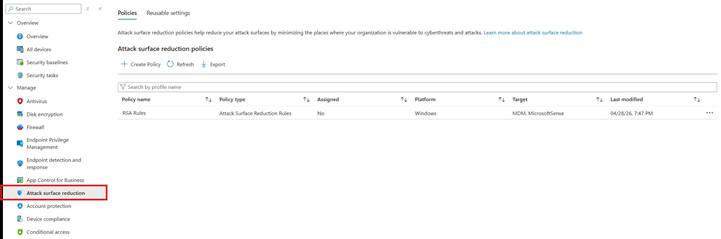
- Select an existing policy or choose Create Policy
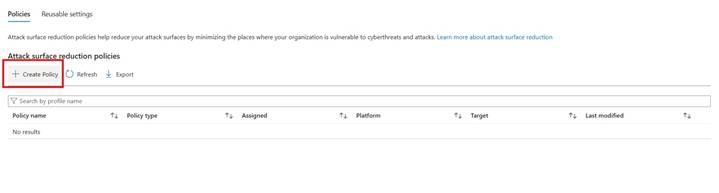
- For Profile type, select Attack Surface Reduction Rules
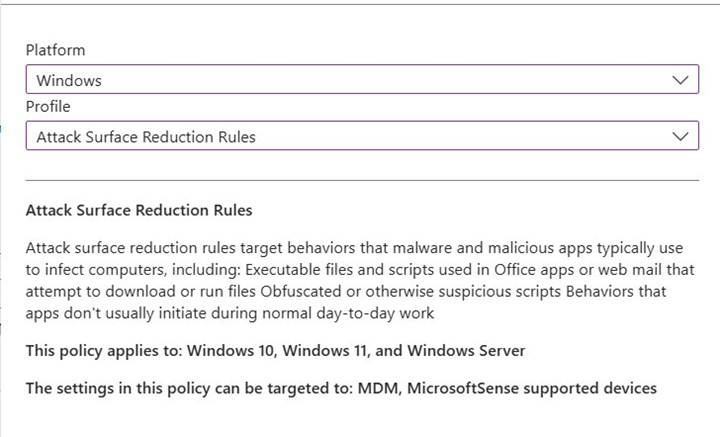
- In the Configuration settings pane, select Attack Surface Reduction and configure each rule to your desired setting (Audit, Warn, or Block)
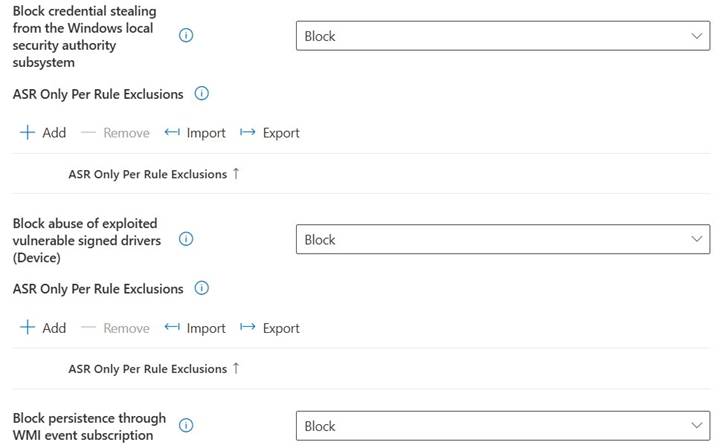
- Under List of additional folders that need to be protected, List of apps that have access to protected folders, and Exclude files and paths from attack surface reduction rules, enter any exclusions you’ve identified
- You can also select Import to bring in a CSV file for your exclusions — each line should follow this format: C:\folder, %ProgramFiles%\folder\file, C:\path
- Select Next through the remaining panes and then Create for a new policy or save if editing an existing one
For the full current list of ASR rules including their GUIDs and what each one blocks, Microsoft maintains a comprehensive reference page at learn.microsoft.com/en-us/defender-endpoint/attack-surface-reduction-rules-reference
Microsoft has these 3 standard protection rules that they recommend that often time have minimal to no noticeable impact to the end user.
- Block credential stealing from the Windows local security authority subsystem(lsass.exe)
- Block abuse of exploited vulnerable signed drivers
- Block Persistence through Windows Management Instrumentation (WMI) event subscription
Exclusion Gotchas Worth Knowing
ASR rule exclusions have some quirks that will catch you off guard if you’re not aware of them going in:
- ASR exclusions are completely independent from Defender AV exclusions — adding something to your AV exclusion list does not exclude it from ASR rules
- Wildcards cannot be used to define a drive letter
- To exclude multiple nested folders in a path, use multiple instances of \*\ — for example C:\Folder\*\*\Test
- Microsoft Endpoint Configuration Manager does not support wildcards
- To exclude a file with random characters such as auto-generated filenames, use the ? symbol; for example C:\Folder\fileversion?.docx
- ASR exclusions configured via Group Policy do not support quotes
- ASR rules run under the NT AUTHORITY\SYSTEM account, so environmental variables are limited to machine-level variables only
Closing Thoughts
ASR rules are one of the most effective tools in the Microsoft Defender toolkit when deployed correctly, and one of the fastest ways to generate user complaints when deployed carelessly. The ring methodology, the audit-first approach, and understanding the exclusion system are what separate an admin that makes operations difficult for the business and a useful admin. Take your time with the planning phase, let audit mode do its job, and you’ll end up with a meaningful security improvement that your users will never even notice.